Block distracting apps on your iPhone.
Set Screen Time to keep Instagram shut through the workday, or block it for exactly as long as you're working.
Lissa kommt bald.
Trag dich in die Warteliste ein und erfahre, wie du Lissa Premium zum Start kostenlos bekommst.
Setz deine Kopfhörer auf.
7 Tage gratis. Jederzeit kündbar.


The quick answer
- To block apps at set hours: Settings > Screen Time > Screen Time Schedule. Leave Social Media out of your working hours, and it won't open until the window ends.
- To cap time on a type of app: Settings > Screen Time > Time Allowances. Give Social Media 30 minutes a day, and it closes when the time is spent.
- To stop the buzzing: a Focus, in Settings > Focus, silences the apps you choose. They still open if you tap them.
- To block apps only while you're working: start a session in an app that blocks them until the session ends, like Lissa's Block Distracting Apps.
Block apps at set hours with a Screen Time Schedule
In iOS 27, Screen Time Schedule takes the place of Downtime. You split the day into time windows and choose which kinds of apps you can use in each. The apps in Always Allowed open at any hour.
- Open Settings and tap Screen Time.
- Tap Screen Time Schedule, then turn on Schedule.
- Tap Add Schedule and choose the days, say Monday to Friday.
- Tap the time window, set its start and end, and tap the categories you can use in it.
- Tap Add Time Window for the next part of your day. A useful split: Social Media and Entertainment available until 9 a.m., gone from 9 to 5, back for the evening.
- Go back to Screen Time, tap Always Allowed, then tap Add Apps. Add what you need at every hour: Messages, Phone, your calendar, the app you work in.
If a messaging app you need for work counts as Social Media, add it to Always Allowed.
Schedules and Time Allowances need iOS 27, or the matching version, on every Apple device you're signed in to.
Still on iOS 26 or earlier? Go to Settings > Screen Time > Downtime, turn on Scheduled, set the hours, and turn on Block at Downtime.
Cap the time with Time Allowances
A Time Allowance sets how long you get in a category each day. When it runs out, the apps in that category close.
- Open Settings, tap Screen Time, then tap Time Allowances.
- Drag the top slider to the total time you want on your phone each day.
- Tap a category, like Social Media, and drag its slider to the time you want.
- To add another category, tap Manage Categories, then tap the Add button.
- Turn on Match Screen Time Schedule to tie each allowance to the time windows in your schedule.
If an app has a website, its allowance counts time on both.
On iOS 26 or earlier, the same job is Settings > Screen Time > App Limits > Add Limit. Pick the apps, set a time, and turn on Block at End of Limit.
Quiet the buzzing with a Focus
A Focus decides which people and apps can send you notifications. It doesn't stop an app from opening, so pair it with one of the blocks above.
- Open Settings and tap Focus.
- Tap Work, or tap the Add button to make your own.
- Tap Apps. Choose Silence Notifications From and add the apps that pull you away, or choose Allow Notifications From and add only the ones you need.
- Choose a Home Screen page without the apps you scroll.
- Tap Add Schedule so it turns on by itself, or turn it on from Control Center.
That takes away the buzz and the icon. The app is still one search away.
Which ones hold when you reach for your phone anyway
What counts is what each one takes to get past when you pick up the phone mid-task and your thumb heads for the same icon.
| Method | What it does | What it takes to get past it |
|---|---|---|
| Screen Time Schedule | Keeps chosen categories closed outside your time windows | A tap on the limit screen for more time, unless a Screen Time passcode is set |
| Time Allowances | Closes a category once its daily time is used | The same tap |
| Screen Time passcode | Puts a code in front of more time and in front of your settings | Typing it, so it holds best when someone else sets it |
| Focus | Silences notifications and hides Home Screen pages | Searching for the app |
| Shortcuts automation | Sends you back to the Home Screen when a chosen app opens | Turning the automation off |
| Deleting the app | Removes it from your phone | Downloading it again from the App Store |
| A blocking app | Shows a block screen when you open a chosen app, for as long as you set | Depends on the app: some can't be ended early, others end when you end the session |
The weak spot in Screen Time is that you set the rule and you're also the one asking for more time. To lock your own settings, go to Settings > Screen Time > Passcode & Management > Lock Screen Time Settings. It works best when a partner or a friend types the code and keeps it.
Schedules also assume work keeps office hours. The two hours you need for a report might be at 8 p.m. on a Sunday. A block that starts when you sit down covers those hours too.
What a blocking app adds
Apps that block other apps on iPhone use Apple's Screen Time tools. They ask once for Screen Time access, and a block screen appears in place of the app you opened. What they change is when the block starts and ends.
Most fall into three kinds:
- Schedule blockers keep apps shut at the hours you set, like Screen Time Schedule with more options.
- Friction apps make you pause or breathe before an app opens, then let you decide.
- Session blockers block the apps for as long as a focus session runs, then open them again. This is where Lissa fits.
Block Distracting Apps in Lissa
Lissa plays music for deep work and keeps a timer for your breaks. Block Distracting Apps is a switch on that same session: choose the apps that pull you away, press Start, and they stay shut until the session ends.
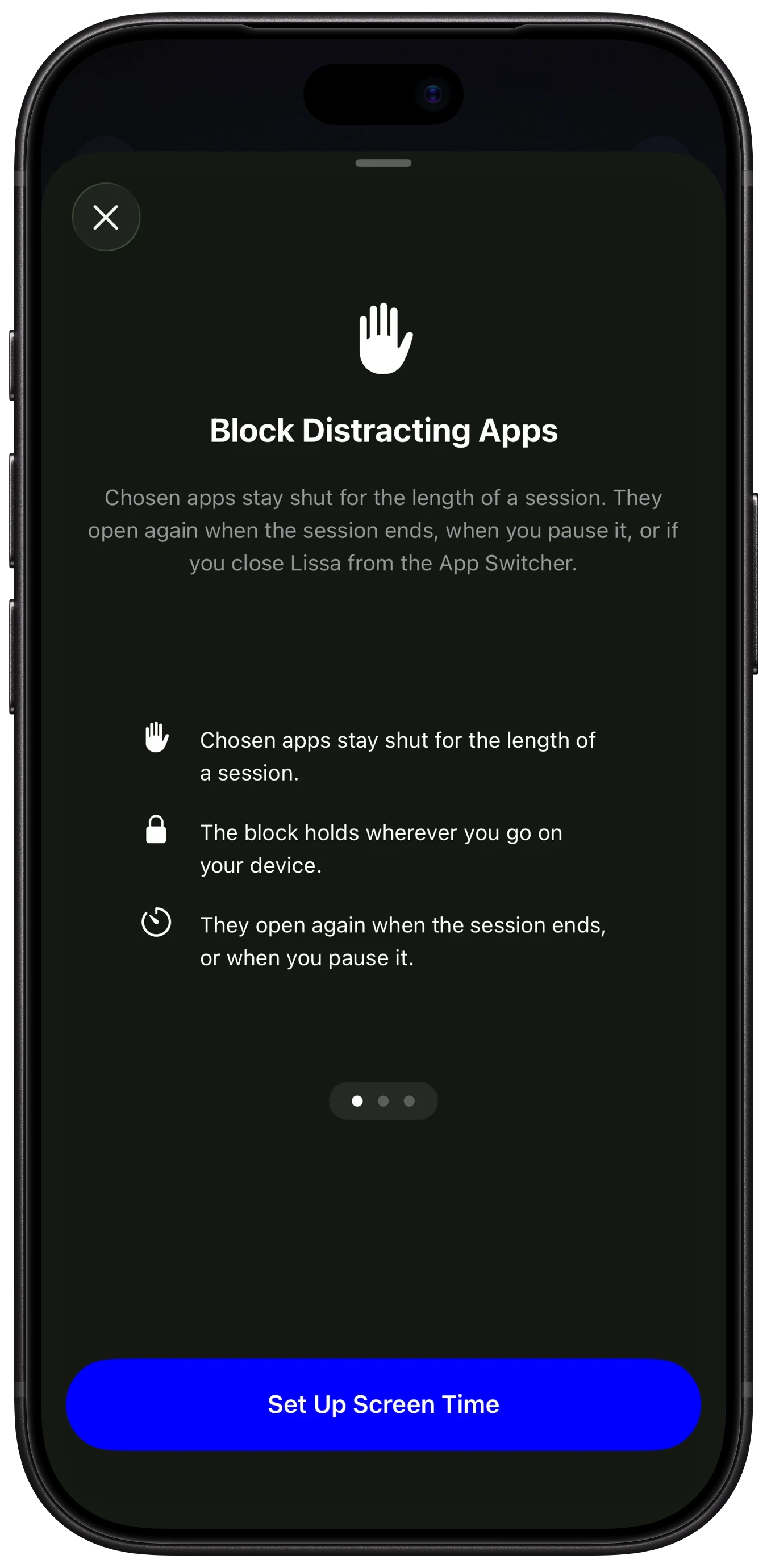
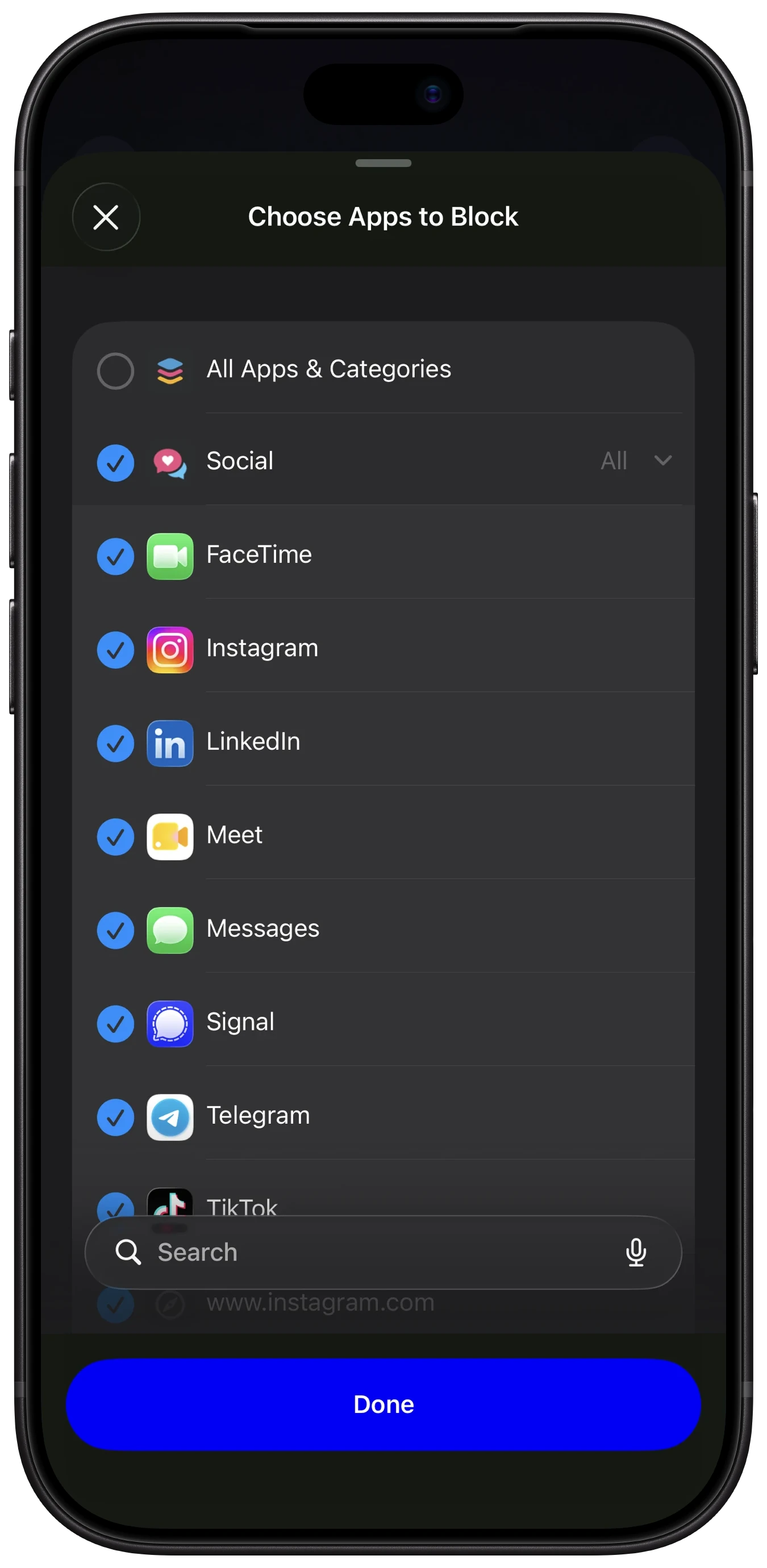
Set it up once. Choose the apps you don't want during work. Pick them one by one or a whole category at a time, and add websites too. Your choices stay on your device.
Press Start and put the phone down. Turn on the block in the Start Session drawer and press Start. The music begins, and the apps you chose stay shut until the session ends, even after you leave Lissa.
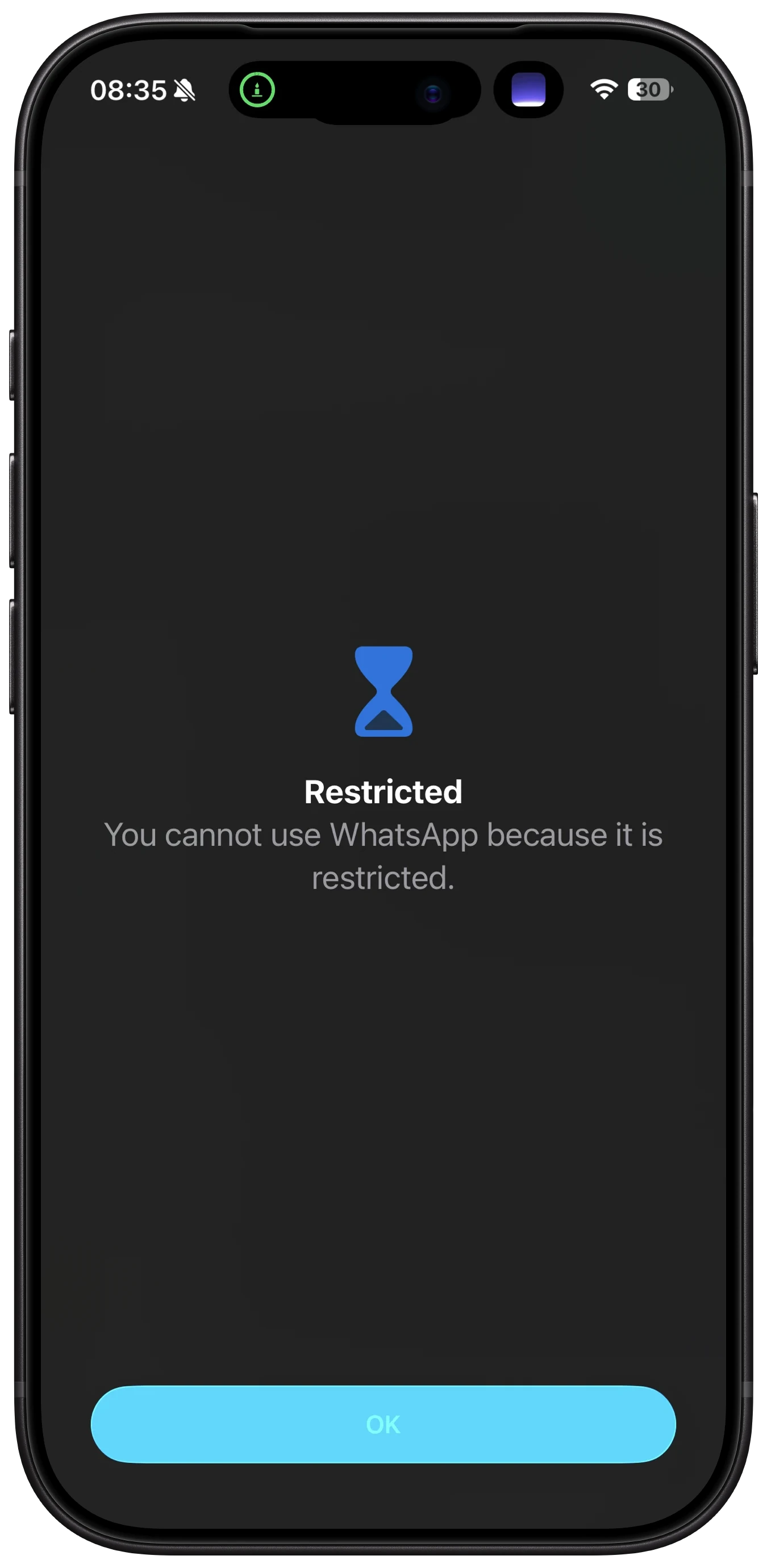
Open a blocked app, and you see when you're free. In its place is a screen that says Distracting Apps Blocked and the time your session ends, with a button straight back to it.
The apps open again when you're done. When the session ends, everything you blocked opens as usual.
A session you'll want to start. Ever-evolving instrumental music made for deep work, or your own playlist on Apple Music, with a Pomodoro timer that rings for every break. The block comes with it.
It works for the evening too. Turn it on in your Sleep | Wake Schedule, and the apps stay shut while your sleep session plays. Or turn it on for a Relax session, and the break you meant to take doesn't turn into scrolling.
A list for each session. A Saved Soundscape remembers the block and its own list of apps, so your morning email session can leave Slack open while your evening study session shuts everything.
Was unsere Betatester sagen.
JonathanBetatester „Lissa hat meine Fokuszeit wirklich verändert. Die Klanglandschaften sind wunderschön und helfen mir, schnell reinzukommen, und ich kann ganz einfach auch meine eigene Musik hinzufügen. Dass ablenkende Apps blockiert sind, hält mich bei der Sache, und die Pausenerinnerungen bewahren mich in langen Sessions vor dem Ausbrennen. Absolut empfehlenswert.“
WilliamBetatester „Tolle Arbeit mit diesem großartigen Tool, es wird vielen Menschen helfen.“
PhillipBetatester „Die Idee, ‚eine Klanglandschaft zu bauen‘, um dich in eine bestimmte Stimmung zu versetzen, ist unglaublich.“
JamesBetatester „Ich liebe es, dass ich modulieren und die Frequenzen (das ist magisch), Formen usw. ändern kann.“
Lissa kommt bald.
Trag dich in die Warteliste ein und erfahre, wie du Lissa Premium zum Start kostenlos bekommst.
Setz deine Kopfhörer auf.
7 Tage gratis. Jederzeit kündbar.
What the research on interruptions shows.
Researchers who watched 24 information workers at their jobs found they switched tasks about every 10 and a half minutes. When interrupted work was picked up again the same day, it took 23 minutes on average to get back to it. In a separate experiment, people who were interrupted finished just as well and faster, but felt more stressed, frustrated and rushed.
A 25-minute Pomodoro or a 40-minute Deep Session with the apps shut is a stretch of work nothing breaks into.
Before you start.
What's the best way to block distracting apps on iPhone?
For fixed hours, Screen Time Schedule is built in and free. For work that doesn't keep set hours, a session blocker fits better, because the block starts when you sit down and ends when you're done. You can use both: a schedule for the evening scroll, a session for the work.
Can I block apps on iPhone without a third-party app?
Yes. Screen Time Schedule and Time Allowances in Settings > Screen Time will both keep apps from opening. On iOS 26 or earlier, use Downtime and App Limits. Turn on a Screen Time passcode if you want the block to hold.
Why does Screen Time keep letting me ignore the limit?
The limit screen offers more time, and without a Screen Time passcode, one tap gets you in. Lock your settings in Settings > Screen Time > Passcode & Management, and have someone else choose the code.
Does a Focus block apps?
No. A Focus silences notifications and can hide Home Screen pages, but every app still opens from search or the App Library. Use a Focus for quiet, and a block to keep the apps closed.
What if I need one of the blocked apps?
Pause your session and the apps open again. Resume it, and they close.
Can I block websites as well as apps?
Yes. In Screen Time, an app's Time Allowance also counts time on its website. In Lissa, you can add websites alongside apps and whole categories when you choose what to block.
Is Block Distracting Apps free?
It's part of Lissa Premium. Join the waitlist and learn how to get Lissa Premium free at launch. No credit card needed.Premium starts with 7 days free on the yearly plan.
Verwandte Themen
- What to Do About Noisy Neighbors, Starting Tonight
Footsteps overhead or bass through the wall at 1am? What to say to your neighbor, what to change in your room, and how to cover the rest so you can sleep.
- Calm vs Headspace: Sleep, Anxiety, Meditation, Price
Calm and Headspace side by side: Sleep Stories or courses, coaching, sound, free trials and US prices, and which fits sleep, anxiety or meditation.
- Green Noise for Sleep: Play It Free, All Night
Play green noise for sleep and keep it free. How loud to play it, speaker or sleep headphones, and when to leave it on all night.
- Sleep Timer on iPhone: Apple Music, Spotify, YouTube
Set a sleep timer on iPhone with the Clock app, and it stops any app at the time you choose. Plus the timers built into Spotify and YouTube.
- Water Eject: Play the 165 Hz Tone or Get the Shortcut
Speaker muffled after rain or the pool? Play the 165 Hz water eject tone here, free, or get the Water Eject shortcut and run it with Siri.
- White Noise App: Play It Free, Then Sleep All Night
Play white, pink or brown noise free in your browser, learn when each one helps, then sleep to it all night in Lissa.
Get your afternoons back.
Lissa is coming soon. Choose the apps that pull you away, press start, and get the work done before they open again.
Lissa kommt bald.
Trag dich in die Warteliste ein und erfahre, wie du Lissa Premium zum Start kostenlos bekommst.
Setz deine Kopfhörer auf.
7 Tage gratis. Jederzeit kündbar.